📖 3. Use MetaBase to recognize Smart Scoresheet
We also recorded a view showing you how to use the software to recognize your scoresheet - Recognize a score sheet on YouTube
1.Install MetaBase at - https://github.com/metadbchess/metabase/releases/latest/
- For Windows - search MetaBase-win-x64-Setup.exe and click it to download
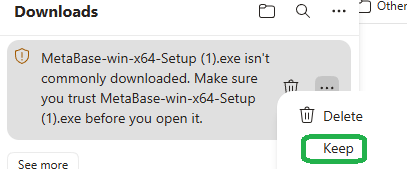
- You computer may warn you that it's not commonly downloaded and suggest you to deletel Please select Keep
- Install the MetaBase software
2. Design your own scoresheet
- Open MetaBase
- Click Score Sheets -> Design a score sheet
- Choose the paper size, number of moves, and then you can save as PDF's or print directly.
3. Notate
- The scoresheet looks much like a standard chess scoresheet, with two key differences: QR codes in all four corners help the software align the image and locate the fields, while solid baselines and dashed midlines guide your handwriting.
- Clear, consistent handwriting helps improve move-recognition accuracy. As a rule of thumb: “Notate like a first grader”—write each character separately, form letters and numbers clearly, and follow the guides.

4. Recognize and safe your game
- Take a clear picture of your scoresheet and save it to the computer
- Open MetaBase
- Click Score Sheets -> Recognize score sheet
- Click Add Score Sheet -> Open Scoresheet and select the scoresheet picture
- If you have more than one scoresheet for the same game, click Add Score Sheet -> Add Page
- Click Crop button
- If crop is successful, click the Recognize button
- In the 'Header & Result' tab, click 'Recognize" button to read the event header and result from the scoresheet. You can manually edit these fields to correct any mistakes.
- Then click the Moves tab
- The software recognize chess moves block by block. You can set the block size, which default to 10.
- Click Start Recognizing button and the software will start recognize the scoresheet. It will try to self-correct errors. If it got stuck, it will stop and you can manually make the move on the chess board to fix the error. Click Resume after you manually fix error.
- After a block is recognized, you can click Confirm and Continue with next block.
- Click Review & Export tab after you finish scoresheet recognition. Click the Export button to save your game as a PGN file or a Lichess study for later analysis.
Resources
Resources
We also recorded a view showing you how to use the software to recognize your scoresheet - Recognize a score sheet on YouTube
1.Install MetaBase at - https://github.com/metadbchess/metabase/releases/latest/
- For Windows - search MetaBase-win-x64-Setup.exe and click it to download
- You computer may warn you that it's not commonly downloaded and suggest you to deletel Please select Keep
- Install the MetaBase software
2. Design your own scoresheet
- Open MetaBase
- Click Score Sheets -> Design a score sheet
- Choose the paper size, number of moves, and then you can save as PDF's or print directly.
3. Notate
- The scoresheet looks much like a standard chess scoresheet, with two key differences: QR codes in all four corners help the software align the image and locate the fields, while solid baselines and dashed midlines guide your handwriting.
- Clear, consistent handwriting helps improve move-recognition accuracy. As a rule of thumb: “Notate like a first grader”—write each character separately, form letters and numbers clearly, and follow the guides.
4. Recognize and safe your game
- Take a clear picture of your scoresheet and save it to the computer
- Open MetaBase
- Click Score Sheets -> Recognize score sheet
- Click Add Score Sheet -> Open Scoresheet and select the scoresheet picture
- If you have more than one scoresheet for the same game, click Add Score Sheet -> Add Page
- Click Crop button
- If crop is successful, click the Recognize button
- In the 'Header & Result' tab, click 'Recognize" button to read the event header and result from the scoresheet. You can manually edit these fields to correct any mistakes.
- Then click the Moves tab
- The software recognize chess moves block by block. You can set the block size, which default to 10.
- Click Start Recognizing button and the software will start recognize the scoresheet. It will try to self-correct errors. If it got stuck, it will stop and you can manually make the move on the chess board to fix the error. Click Resume after you manually fix error.
- After a block is recognized, you can click Confirm and Continue with next block.
- Click Review & Export tab after you finish scoresheet recognition. Click the Export button to save your game as a PGN file or a Lichess study for later analysis.